

Most of Lowly's articles explain some corner of how Amazon works. This one explains Lowly itself, what it actually does on a product page, what the labels and filters mean, and where its limits are.
Install Lowly and get started
Lowly is a free browser extension, available on the Chrome Web Store and as a Firefox add-on. Installation works the same way any extension does: click Add, confirm the permissions prompt your browser shows you, and it's installed. Pinning it to your toolbar makes it easier to find later.
No account or sign-in is required. Once it's installed and you've granted the browser permissions, you can open an Amazon product page and start using it right away. On Chrome, a welcome page opens automatically the first time. If you already had an Amazon tab open during installation, refreshing that tab is usually enough to get Lowly working on it.
Where Lowly works
Lowly works on 18 Amazon storefronts: .com, .co.uk, .de, .fr, .it, .es, .nl, .se, .pl, .ca, .com.mx, .com.br, .co.jp, .in, .com.au, .sg, .ae, and .sa. If you shop on a different Amazon site, it won't be available there.
It's also built for individual product pages specifically, not search results, the homepage, or your cart. If you're on a page showing one product with its own listing, that's where it works.
One practical tip: Lowly's own guide recommends setting Amazon's language to English for the best results, since matching relies on reading text.
Find similar listings on a product page
Open a product page on Amazon, and Lowly reads the listing you're viewing along with other listings already loaded on that page, including the ones in Amazon's own "related products" or "customers also bought" sections. Scrolling down a bit before you open Lowly gives it more to work with, since it only compares what's actually loaded.
Click the Lowly icon in your toolbar to open the comparison popup. The item you're currently viewing appears under "Viewing now," with other listings shown alongside it. Click any of them and it opens that listing's actual Amazon page.

On some pages, you'll also notice a small notification appear on its own, letting you know Lowly found listings on that page priced lower than the one you're viewing. That's a one-time look at what's currently loaded, not an ongoing watch. Lowly doesn't track prices over time or send alerts when something's price changes later. If you want that kind of monitoring, that's a different category of tool.
What the similarity labels mean
Instead of a raw score, listings are shown with one of four labels: Very similar product, Similar product, Potential alternative, or Related product. These reflect Lowly's estimate of how closely a listing matches what you're viewing, based on the available text.
None of these labels mean identical. Two listings can share a label and still differ in size, materials, included parts, or compatibility. The label is a starting point for your own comparison, not a verdict, and it isn't a guarantee of an exact match. The product description and photos on the actual Amazon listing are still the ones that matter when you decide.
Lowly looks at the product information already shown on the page, mainly the listing titles, to work out which other listings might be similar. The similarity labels are there to help you explore your options. They're not a guarantee that two products have identical specifications or will suit the same needs.
Product images are shown for reference. They aren't used to judge similarity. Before you buy, it's worth checking the actual Amazon listing for size, quantity, materials, and compatibility, since those can still differ even between listings marked as similar.
Sort and filter your comparisons
Three sort options are available: Best Match, Price: Lowest, and Price: Highest.
The filters panel adds a few more ways to narrow things down:
- Minimum similarity — hide listings below a similarity threshold
- Same brand only — show only listings from the same brand as the one you're viewing
- Prime only — show only Prime-eligible listings
- Minimum review count — hide listings below a certain number of reviews
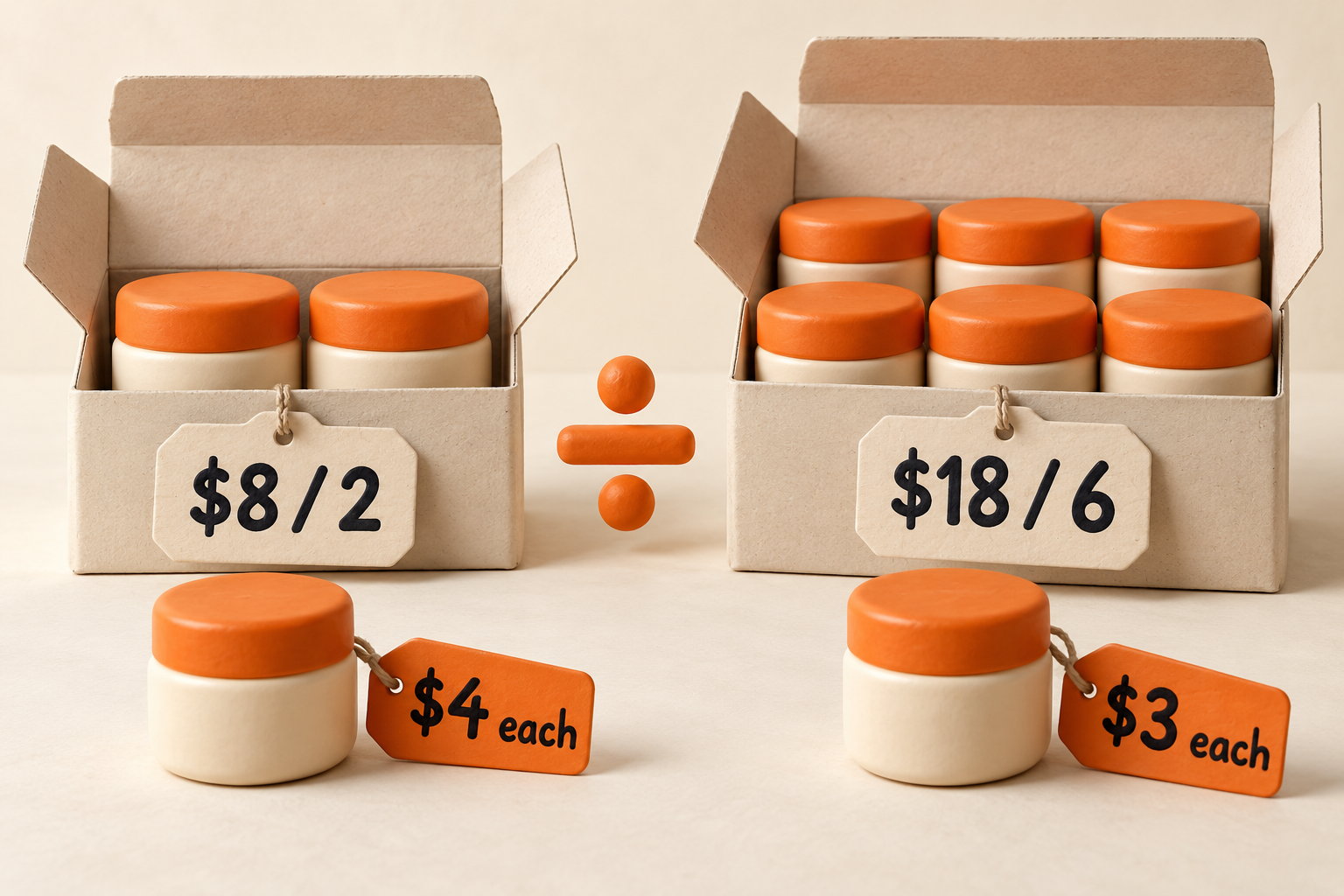
- Best Value per Count — shows price per item or per unit when Lowly can detect quantities, so you can compare a 2-pack against a 6-pack on equal footing
One clarification worth stating plainly: minimum review count is a filter you set, not a judgment Lowly makes about whether a product or seller can be trusted. Lowly doesn't score or rate sellers. Checking a seller's own profile and reading reviews yourself is still the way to evaluate that.
How to use the Minimum Similarity slider
The Minimum Similarity filter works as a slider, running from 10% to 90% in steps of 10. The default is 30%, and Lowly remembers your setting separately for each product, so if you come back to a listing later, your filter is right where you left it.
Raising the slider hides listings below that threshold. It doesn't change your sort order, so if you have Price: Lowest selected, moving the slider just narrows the list while keeping that sort. As you drag, the percentage and the number of matching products update right away, and the full list updates once you let go.
The slider uses the same underlying score as the similarity labels.
One small detail worth knowing: the labels are based on rounded scores, but the slider filters on the exact, unrounded score. So occasionally a listing sitting right at a label's edge might get filtered out even though its label suggests it should qualify.
As for how to actually use it: raise it when you want fewer, closer matches. Lower it when you want to see more options. If a product isn't returning much, lowering the similarity slider, or relaxing one of the other filters, is usually the first thing worth trying.
Save listings to your Lowly wishlist
Clicking the heart icon on a listing saves it to Lowly's own wishlist, stored locally in your browser. Click it again to remove it. This is separate from Amazon's own wishlist feature, saving something in Lowly doesn't add it to your Amazon account.
Click the heart icon in the popup header to open the full wishlist panel. From there you can revisit saved listings, add your own notes, remove items, and reorder them.

What Lowly can and can't do
Worth stating clearly, since it shapes how to use it well:
- It compares listings already loaded on the page you're viewing. It doesn't search Amazon's entire catalog.
- It doesn't guarantee it's shown you every available listing, or the lowest one that exists somewhere on Amazon.
- A listed price match doesn't account for shipping costs, taxes, or anything else added at checkout.
- It can come up short on very niche products, listings with vague or unusual titles, or pages where Amazon hasn't loaded many related listings to begin with. Unbranded products aren't excluded, but there's often less text to work with.
Lowly's job is to put more of what's already on the page in front of you, sorted and labeled, so you're not opening ten tabs to do it manually. It doesn't rate sellers, track prices over time, or tell you what to buy. Whatever you end up choosing, that part is always on you, and it's worth a quick look at the actual listing, the seller, and the return terms before you check out.
Try Lowly on your next Amazon visit
Add to Chrome. It's Free.Frequently Asked Questions
Is Lowly free?
Yes. It's free to install and use on Chrome and Firefox, with no account required.
Does Lowly work on Amazon search results?
No. It's built for individual product pages, not search results, the homepage, or your cart.
What does the similarity slider do?
It filters out listings below the similarity percentage you set, running from 10% to 90%. Raising it narrows the list to closer matches; lowering it shows more options.
Does the heart icon add items to my Amazon wishlist?
No. It saves them to Lowly's own wishlist, stored locally in your browser, separate from Amazon's wishlist.
Does "similar" mean the listings are the same product?
No. The labels describe how closely listings match based on available text, not a guarantee they're identical. Specs, size, and materials can still differ, so check the listing itself.
Does Lowly track prices or send price alerts?
No. It shows what's loaded on the page at the time you're viewing it. It doesn't monitor prices over time or notify you about future changes.
Does Lowly rate or score sellers?
No. Filters like minimum review count narrow what you see, but they aren't a trust judgment. Checking a seller's profile and reviews is still on you.